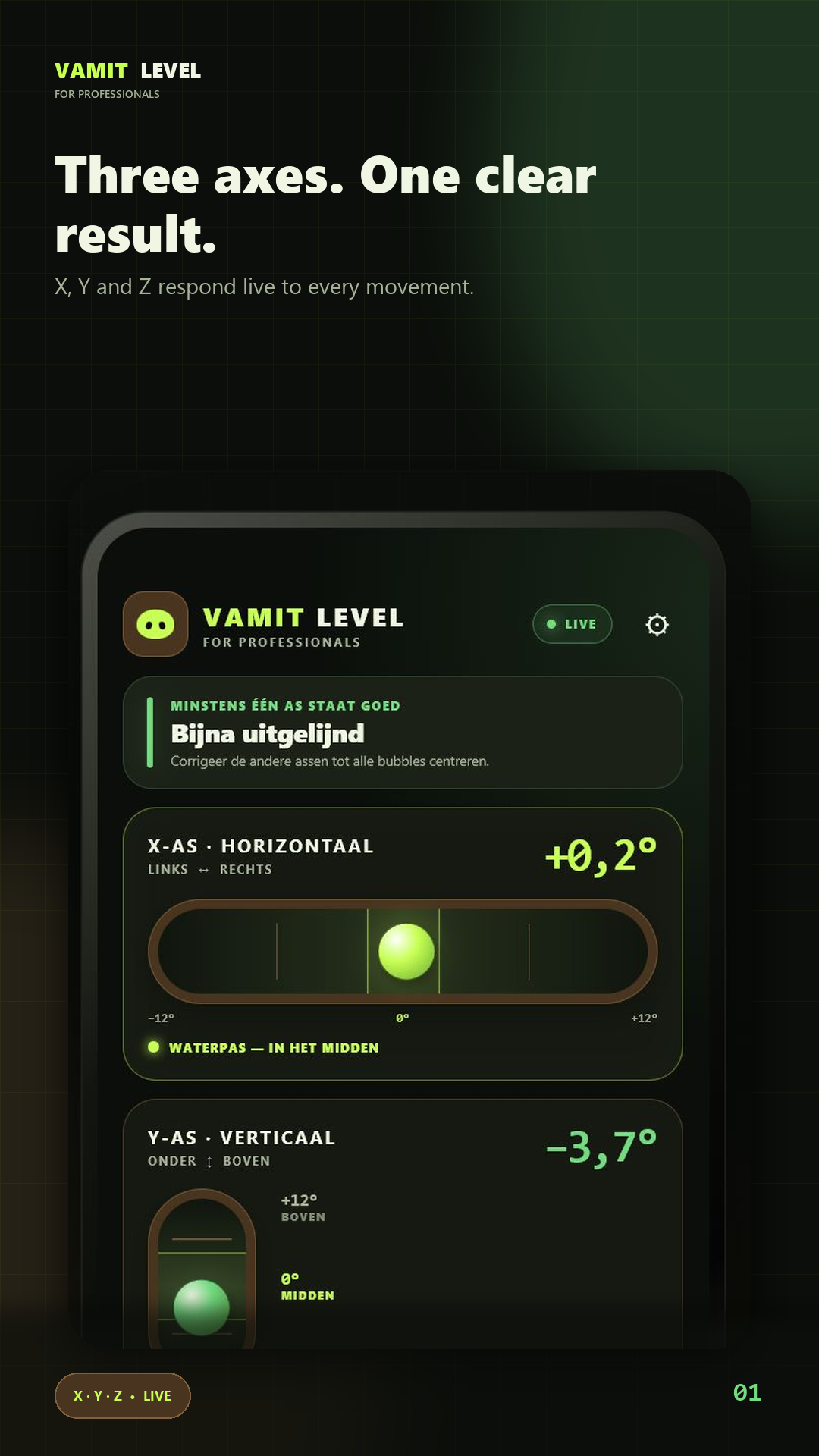
Read three-axis orientation, set a reference and hold a measurement.
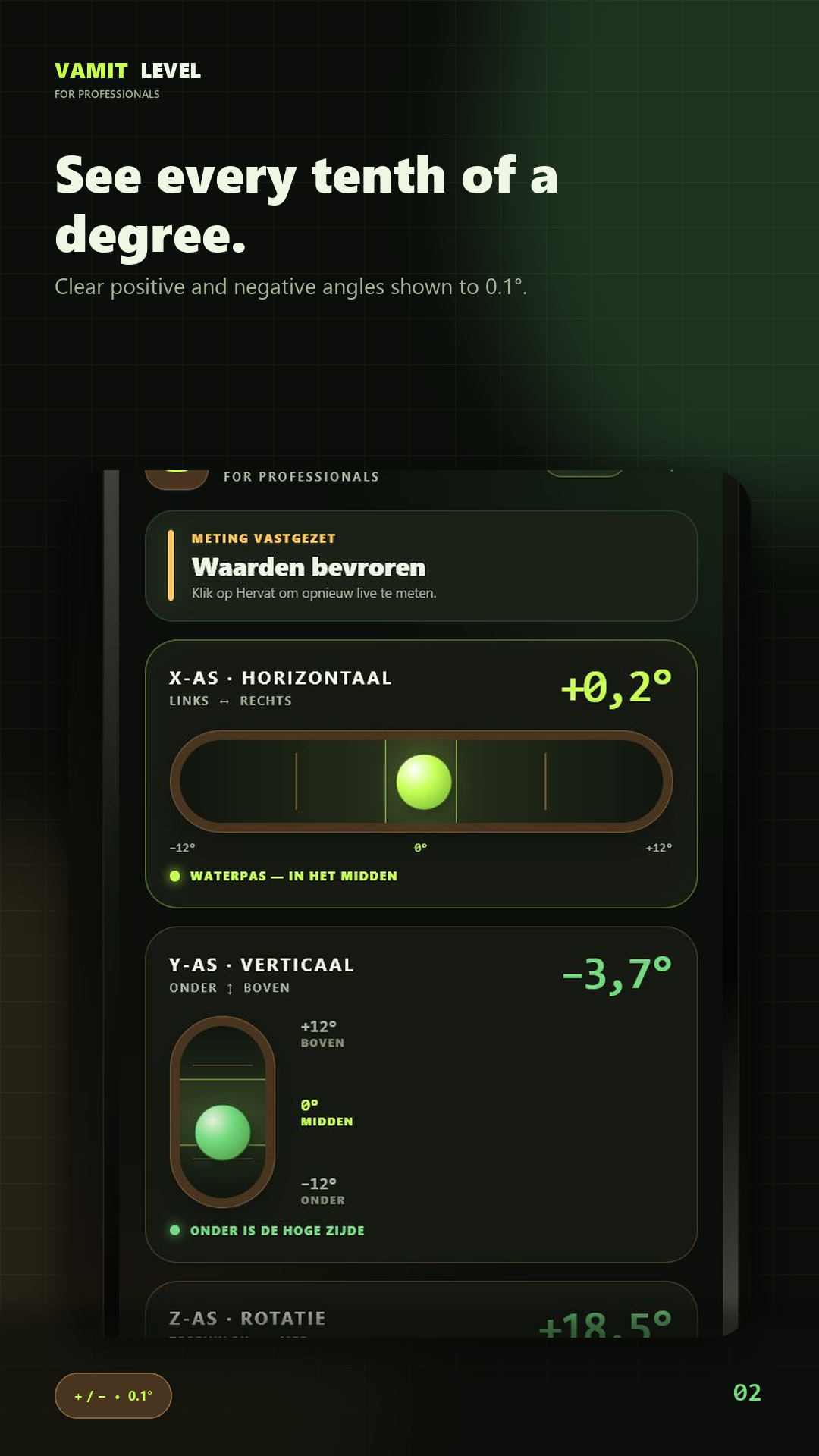
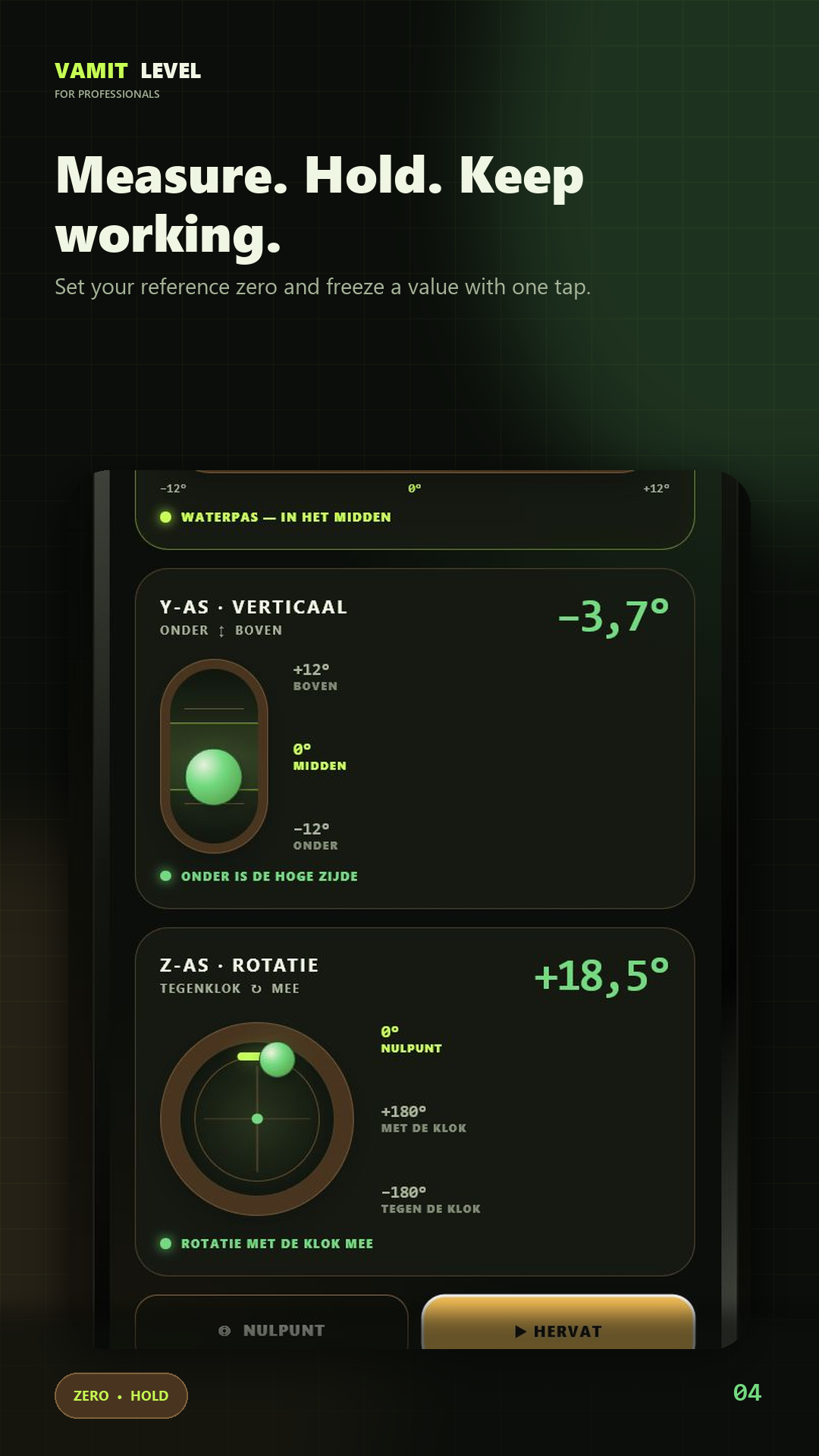
VAMIT Level uses the phone's sensors to show X, Y and Z readings, bubble indicators and signed degree values. Zero and Hold help when comparing a surface or reading a value from an awkward position.
For convenient everyday alignment checks with your Android phone.
Three-axis viewX, Y and Z readings beside the bubble indicators.Signed anglesPositive and negative values show direction as well as angle.HoldFreeze the reading before moving the phone to view it.
Accuracy depends on the device, contact surface and reference. Verify important measurements independently.
The phone must make consistent contact with the surface you want to check.
Choose a stable contact edge or back surface. Remove a case if it prevents the phone from sitting flat or makes it rock.
Open VAMIT Level and place the phone in the intended orientation. Keep the same orientation when comparing two readings.
Let the reading settle before interpreting it. Read the relevant axis and bubble rather than adding unrelated axis values together.
Lift and replace the phone at the same position to check repeatability. A moving surface or uneven contact can cause variation.
For an important alignment, compare the result with an appropriate physical measuring instrument.
GUIDE 02
Compare against a reference
Zero is useful for comparing orientation against a chosen reference, not for proving that the reference itself is level.
Put the phone against the reference surface and keep it steady.
Use Zero to set the reference, then move to the surface you want to compare while keeping the phone orientation consistent.
Read the signed value as a difference from the chosen reference. A zero difference does not prove the original reference was horizontal.
When you change jobs or reference surfaces, check which reference is active before interpreting further values.
GUIDE 03
Read an awkward measurement with Hold
Use Hold when you can place the phone correctly but cannot comfortably see the screen.
Position the phone securely against the surface. Let the values settle.
Activate Hold before lifting the phone away.
Move the phone to a comfortable viewing position and read the frozen values. They describe the held position, not the new position in your hand.
Release Hold before taking the next measurement. Confirm the bubbles and values are responding again.
Common questions
Answers for VAMIT Level
Why does the reading move slightly?
Small movements, sensor noise, the phone case and imperfect contact can affect it. Put the phone on a stable surface, let it settle and repeat the placement.
What do positive and negative degrees mean?
The sign indicates direction for the displayed axis. Keep the phone orientation consistent when comparing values.
Why does the display stay unchanged?
Check whether Hold is enabled. Release it before expecting a live measurement.
Does Zero prove a surface is level?
No. It establishes a reference for comparison. An incorrectly chosen reference can make later comparisons misleading.
Are measurements uploaded to an account?
Sensor readings are processed on the device. The documented app does not use a Vamit measurement account or measurement cloud service. Advertising and purchases involve Google services as described in the privacy policy.
Can I use this instead of a professional instrument?
Use an appropriate calibrated instrument when accuracy, certification or safety matters. The phone app is a convenient aid, not a guarantee of measurement accuracy.
Sensor readings are processed locally to draw the bubbles and degree values. VAMIT does not operate an account or cloud service for your measurements. Advertising consent and the ad-free purchase use Google services.
For help with VAMIT Level, mention your app version, device and what happened. Do not send passwords, invitation codes or unnecessary personal information.